
-91%


Jungle Adventure - Cross Platform Platformer Game
Original price was: Rs4,263.00.Rs952.60Current price is: Rs952.60.

Christmas Runner 3D - HTML5 Game - C3P
Original price was: Rs4,263.00.Rs952.60Current price is: Rs952.60.


-75%
School Master Mobile App for Android
Original price was: Rs48,633.00.Rs12,158.25Current price is: Rs12,158.25.

-78%
Task Manager Pro – Task Management Plugin For WordPress
Original price was: Rs4,263.00.Rs952.60Current price is: Rs952.60.

-95%
School Management System for WordPress v91.4.0
Original price was: Rs4,897.00.Rs249.00Current price is: Rs249.00.

-78%
KiviCare – Encounter Body Chart (Add-on)
Original price was: Rs7,743.00.Rs1,698.60Current price is: Rs1,698.60.
![Booknetic - Appointment Booking & Appointment Scheduling & Calendar reservation [SaaS]](https://gplpixel.com/wp-content/uploads/2024/06/Booknetic-Appointment-Booking-Appointment-Scheduling-Calendar-reservation-SaaS-400x203.jpg)
-75%
Booknetic – Appointment Booking & Appointment Scheduling &Calendar reservation [SaaS]
Original price was: Rs43,413.00.Rs10,853.25Current price is: Rs10,853.25.

-84%
Paddle Checkout for WooCommerce
Original price was: Rs4,150.00.Rs669.00Current price is: Rs669.00.

-85%
WordPress Google Places Review Plugin: Google Business Rating Plugin
Original price was: Rs2,822.00.Rs419.00Current price is: Rs419.00.

-78%
WhatsApp Chat WordPress
Original price was: Rs7,743.00.Rs1,698.60Current price is: Rs1,698.60.

-86%
Product Search for WooCommerce
Original price was: Rs4,067.00.Rs589.00Current price is: Rs589.00.

-77%
Matly | WordPress Matrimonial User Management System
Original price was: Rs3,393.00.Rs778.60Current price is: Rs778.60.

-77%
Fat Services Booking – Automated Booking and Online Scheduling
Original price was: Rs3,393.00.Rs778.60Current price is: Rs778.60.

-91%
ALD – AliExpress Dropshipping and Fulfillment for WooCommerce v2.1.2
Original price was: Rs2,656.00.Rs249.00Current price is: Rs249.00.

-78%
Use-your-Drive | Google Drive plugin for WordPress
Original price was: Rs6,003.00.Rs1,300.60Current price is: Rs1,300.60.

-78%
Support Genix – WordPress Support Ticket Plugin
Original price was: Rs8,613.00.Rs1,872.60Current price is: Rs1,872.60.

-78%
Modern Video Player for WordPress
Original price was: Rs7,743.00.Rs1,698.60Current price is: Rs1,698.60.

-75%
Bulk User Generator – Create Multiple User Accounts for WordPress at a Single Click
Original price was: Rs1,566.00.Rs391.50Current price is: Rs391.50.
-78%
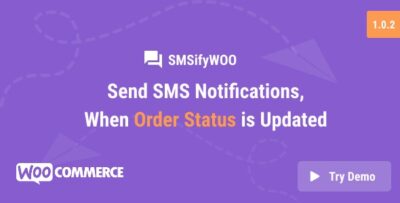
SMSifyWoo – Send SMS Notification For WooCommerce
Original price was: Rs2,175.00.Rs485.00Current price is: Rs485.00.

-67%
WooCommerce Phone Verification on Checkout &SMS Order Notifications by RingCaptcha
Original price was: Rs522.00.Rs174.00Current price is: Rs174.00.

-85%
Palleon – WordPress Image Editor
Original price was: Rs3,237.00.Rs499.00Current price is: Rs499.00.

-78%
Appointment Booking WordPress Plugin – WP Timetics
Original price was: Rs8,613.00.Rs1,872.60Current price is: Rs1,872.60.

-92%
Social Login – WordPress / WooCommerce Plugin v2.7.7
Original price was: Rs3,237.00.Rs249.00Current price is: Rs249.00.

-78%
Product Designer for WooCommerce WordPress
Original price was: Rs6,003.00.Rs1,300.60Current price is: Rs1,300.60.

-78%
Mapplic – Custom Interactive Map WordPress Plugin
Original price was: Rs5,568.00.Rs1,213.60Current price is: Rs1,213.60.

-79%
Content Egg – all in one plugin for Affiliate, Price Comparison, Deal sites
Original price was: Rs16,965.00.Rs3,593.00Current price is: Rs3,593.00.

-75%
WriteBot – AL Content Generator WordPress Plugin
Original price was: Rs35,235.00.Rs8,808.75Current price is: Rs8,808.75.

-78%
WooCommerce Stripe POS Terminal Connector
Original price was: Rs12,702.00.Rs2,740.40Current price is: Rs2,740.40.

-77%
WooCommerce POS Customer Cart Screen
Original price was: Rs3,393.00.Rs778.60Current price is: Rs778.60.
-78%
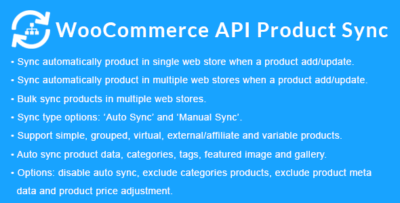
WooCommerce API Product Sync with Multiple WooCommerce Stores (Shops)
Original price was: Rs4,263.00.Rs952.60Current price is: Rs952.60.

-87%
YITH WooCommerce Gift Cards v4.9.0
Original price was: Rs1,899.00.Rs249.00Current price is: Rs249.00.

-87%
YITH WooCommerce Catalog Mode v2.33.0
Original price was: Rs1,899.00.Rs249.00Current price is: Rs249.00.