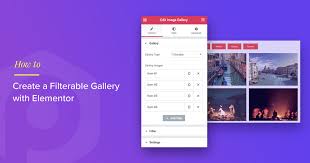


A Filterable Gallery WordPress Plugin for Elementor is a great way to showcase images or content in an interactive and user-friendly manner. With this plugin, visitors can filter through different categories or tags, making it easier to navigate through a large collection of images or portfolio items. It’s perfect for photographers, designers, artists, or anyone who needs to display a gallery in a clean, organized, and visually appealing way.
Here’s an overview of what a Filterable Gallery Plugin for Elementor typically offers and how to set it up:
Key Features of a Filterable Gallery Plugin for Elementor:
- Filterable Categories:
- Allows users to filter the gallery by categories, tags, or custom taxonomies. This makes it easy for visitors to find specific types of content (e.g., “Nature”, “Urban”, or “Black and White”).
- Drag-and-Drop Interface:
- The gallery can be easily designed and customized using Elementor's drag-and-drop interface. You don’t need to code anything to create a visually appealing gallery layout.
- Responsive Design:
- The gallery adjusts automatically to different screen sizes and devices, ensuring that your images look great on desktops, tablets, and smartphones.
- Multiple Layout Options:
- Offers various layouts such as grid, masonry, or carousel. You can select the layout that best fits your design preferences and content.
- Hover Effects:
- Many filterable gallery plugins provide hover effects, where text or additional information appears when a user hovers over an image. This helps you present more details without overcrowding the gallery layout.
- Infinite Scroll and Pagination:
- Some plugins come with infinite scroll or pagination options, allowing users to load more items automatically or navigate through pages of gallery items.
- Image Lightbox Integration:
- Integrated lightbox functionality allows users to click on images and view them in full-screen mode, with navigation options to scroll through the gallery items.
- Customizable Filters:
- You can customize the filter options, including the ability to change the filter’s appearance (button style, size, position, etc.) to match your website’s design.
- Image Titles and Descriptions:
- Display image titles and descriptions that can be added to each image or portfolio item. This is helpful for providing context or additional information about the displayed content.
- Easy Integration with Elementor:
- The plugin integrates smoothly with Elementor. It typically comes with Elementor widgets that allow you to easily insert the gallery into your pages using the Elementor editor.
- SEO Optimization:
- Most gallery plugins are SEO-friendly, allowing you to add alt text, titles, and descriptions to each image. This helps improve the discoverability of your images on search engines.
- Customizable Colors & Styles:
- Many filterable gallery plugins come with customization options for colors, typography, and spacing to ensure that the gallery fits seamlessly into your website’s design.
- Multi-Language Support:
- If your website is multilingual, some plugins are WPML-compatible, allowing you to translate the filterable gallery into different languages.
- Fast Loading Time:
- Filterable gallery plugins are optimized for speed, ensuring that the gallery loads quickly even when there are numerous images.
How to Set Up a Filterable Gallery Plugin for Elementor:
- Install the Plugin:
- First, choose a filterable gallery plugin that is compatible with Elementor. Some popular options include:
- Essential Addons for Elementor (includes a filterable gallery widget)
- Elementor Custom Gallery
- The Grid – Premium WordPress Grid Plugin
- Envira Gallery
- First, choose a filterable gallery plugin that is compatible with Elementor. Some popular options include:
- Create a New Page or Post:
- Go to Pages or Posts in your WordPress dashboard and click on Add New to create a new page or post where you want to insert the gallery.
- Edit with Elementor:
- After creating the page, click on the Edit with Elementor button to open the Elementor page builder.
- Add the Filterable Gallery Widget:
- In the Elementor panel, search for the filterable gallery widget (or the widget provided by the plugin you installed). Drag and drop the widget into your page layout.
- Configure Gallery Settings:
- Choose the images you want to display in your gallery.
- Configure the gallery’s settings, such as the number of columns, layout style (grid, masonry, carousel, etc.), and the filter options (e.g., category buttons or tags).
- Customize the filter buttons, such as adjusting their style, size, and alignment.
- Customize Gallery Appearance:
- Use Elementor’s style options to adjust the appearance of the gallery. You can customize the margins, padding, background color, and more to ensure that the gallery matches your website’s design.
- Add Captions and Descriptions:
- You can add captions or descriptions for each image, which can be displayed when the user hovers over an image or clicks on it. This is a great opportunity to provide additional context or details about your work.
- Preview and Publish:
- Once you're happy with the gallery layout and design, preview your changes by clicking the Preview button. If everything looks good, hit the Publish button to make the page live.
- Test the Gallery:
- Make sure to test the filterable functionality of the gallery. Ensure that users can click on the filter options and that the content updates accordingly.
Recommended Filterable Gallery Plugins for Elementor:
- Essential Addons for Elementor:
- This popular plugin comes with a Filterable Gallery widget, among other design tools. It offers a range of customization options and is perfect for creating dynamic galleries.
- The Grid:
- The Grid is a premium plugin for creating filterable galleries and portfolios. It’s a powerful tool with great customization options, including responsive grids, animations, and filtering features.
- Envira Gallery:
- Envira Gallery is known for its user-friendly interface and powerful features. It supports filterable galleries and integrates well with Elementor. It also offers a lightbox feature, social media integration, and is optimized for speed.
- Photo Gallery by 10Web:
- This plugin offers filterable gallery features and is highly customizable. It’s easy to use with Elementor and allows for seamless integration of beautiful galleries into your website.
- Elementor Custom Gallery:
- Elementor Custom Gallery is a lightweight plugin that lets you create filterable galleries using custom post types or tags. It’s simple to use and works seamlessly with Elementor.