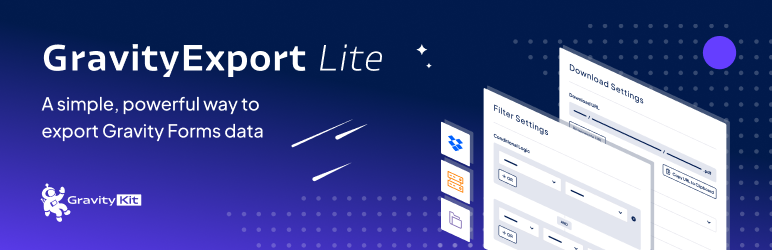


GravityExport is an add-on for the Gravity Forms plugin for WordPress that provides enhanced functionality for exporting form entries. It allows users to easily export form submissions to a variety of file formats (like CSV, Excel, and PDF), making it easier to manage, analyze, and share collected data. The plugin streamlines the process of exporting form data, which can be particularly useful for businesses or organizations that need to process large volumes of form submissions.
Key Features of GravityExport:
- Multiple Export Formats:
- GravityExport allows you to export form entries in several popular formats, including CSV, Excel (XLSX), and PDF. This flexibility ensures that data can be accessed and utilized across different platforms and tools, depending on your needs.
- Export Specific Form Data:
- You can export data from a specific form, and filter which fields to include in the export. This ensures that only relevant data is exported, helping you avoid unnecessary clutter and focusing on what matters most.
- It allows you to export both standard form fields (e.g., text, checkbox) and advanced fields (e.g., multi-part forms, product fields).
- Export All or Filtered Entries:
- You can choose to export all form entries or filter entries based on specific criteria (e.g., by date, by status, or by certain form field values).
- This feature makes it easier to segment data and generate reports tailored to specific time periods, user inputs, or other parameters.
- Scheduled Exports:
- GravityExport offers a scheduling feature, allowing you to automate the export process. You can set up periodic exports (e.g., daily, weekly, or monthly), and the plugin will automatically export form data and send it to your desired destination. This is particularly useful for ongoing reports or regular data processing.
- Easy Data Customization:
- The plugin enables you to customize the exported data by rearranging columns, excluding certain fields, or adding custom labels to make the export more user-friendly.
- You can also include or exclude empty fields in the export to avoid exporting unnecessary or blank data.
- Export User Data:
- For forms that include user registration or profile data, GravityExport can include user-related information, such as usernames, email addresses, and other user meta, providing a complete dataset for further analysis.
- Export Notifications:
- After a successful export, GravityExport can send a notification email with the exported file attached or provide a download link. This is useful for teams or managers who need to receive updates without logging into the WordPress backend.
- PDF Exports:
- The plugin allows for exporting form entries in PDF format, ideal for situations where you want to generate printable records or reports. This is often used for generating receipts, invoices, or other formal documents based on form data.
- Compatibility with Gravity Forms Add-ons:
- GravityExport works well with other Gravity Forms add-ons, such as Gravity Forms Surveys and Polls or Gravity Forms Quiz Add-On. This ensures that data generated from more complex forms can also be exported.
- Easy Integration with Third-Party Tools:
- Data exported from GravityExport can be easily integrated with third-party tools, like Excel for further analysis, email marketing platforms, or other database applications, making it versatile for a wide range of business needs.
- Export Settings and Templates:
- Save export templates for recurring exports, so you don’t need to configure the export settings each time you need to export data. This makes it quicker and easier to generate consistent reports.
Benefits of Using GravityExport:
- Simplifies Data Management:
- The plugin makes it easy to manage large volumes of form data by allowing you to quickly export and work with submissions outside of the WordPress dashboard. It helps keep data organized and accessible.
- Customizable Exports:
- You can tailor the export to your exact needs, choosing the fields you want to export, adding custom labels, or filtering entries based on certain conditions. This level of customization allows you to create highly relevant and actionable reports.
- Improves Data Analysis:
- By exporting data into formats like CSV or Excel, you can easily import it into spreadsheet programs for further analysis. This is useful for businesses that need to generate insights or perform in-depth reporting.
- Time-Saving:
- The ability to automate the export process through scheduled exports saves time and effort, especially for businesses that need to export data regularly. You won’t have to manually export form entries every time; it’s all handled for you.
- Enhanced Data Sharing:
- With exports available in multiple formats, sharing form data becomes simpler. Whether you're emailing a PDF report, sending a CSV to a colleague, or analyzing the data in Excel, GravityExport makes data sharing and collaboration easier.
- Organized and Streamlined Workflow:
- The plugin enhances your workflow by making data exportation more efficient. The customizable filters and export settings help you narrow down the data you need and avoid unnecessary exports of irrelevant data.
- PDF Export for Formal Records:
- The PDF export feature is particularly beneficial for organizations that need to generate official or formal documents like receipts, invoices, or contracts, directly from form submissions.
- Seamless Integration with Gravity Forms:
- As an add-on for Gravity Forms, GravityExport integrates seamlessly with your existing Gravity Forms setup, ensuring that no additional configuration is required.
Use Cases for GravityExport:
- Lead Generation Reports:
- If you’re using Gravity Forms to collect leads through contact forms or registration forms, GravityExport allows you to export all the lead data into Excel or CSV, which can then be used for follow-up, segmentation, or analysis.
- Event Registrations:
- For events, conferences, or webinars where users register via forms, GravityExport can export attendee data and provide organizers with a structured list of attendees, their details, and any other relevant information.
- Customer Surveys or Polls:
- After collecting responses via Gravity Forms Surveys or Polls, you can use GravityExport to export the results for deeper analysis. This could include exporting response data for each question, overall survey performance, or individual participant data.
- Order or Transaction Data:
- For e-commerce websites that use Gravity Forms for orders or payment processing, GravityExport allows the export of transaction or order data in formats such as CSV or Excel for accounting, inventory tracking, or reporting.
- Job Application Forms:
- If you use Gravity Forms for job applications, GravityExport can export applicant details, including resumes or cover letters (if submitted), allowing HR teams to analyze and review applications in an organized manner.
- Event Check-In Lists:
- For events that require on-site check-ins, exporting a list of attendees from Gravity Forms into a CSV or Excel format can help streamline the check-in process by providing an easy-to-access list of registered participants.
- Customer Feedback:
- After collecting feedback from customers through forms, you can use GravityExport to export all responses in a clean, organized format for easy review, reporting, or analysis.
- Invoice and Receipt Generation:
- For businesses that need to generate invoices or receipts based on form submissions, GravityExport offers the PDF export feature, which can automatically create printable receipts, complete with customer information and transaction details.
How to Set Up GravityExport:
- Install Gravity Forms:
- Ensure that you have Gravity Forms installed and activated on your WordPress site, as GravityExport is an add-on to this plugin.
- Install GravityExport:
- After purchasing and downloading GravityExport, you can install the plugin through the WordPress plugin installer by uploading the plugin file or by adding it directly from the plugin dashboard.
- Configure Export Settings:
- Once activated, go to the Gravity Forms settings page, find the GravityExport options, and configure the settings. Choose the form you wish to export data from, select the fields to include, and decide on the format (CSV, Excel, or PDF).
- Set Filters (Optional):
- If needed, set up filters to narrow down the entries you want to export (e.g., by date, status, or a specific field value).
- Schedule Exports (Optional):
- If you want to automate the export process, set up scheduled exports to occur at regular intervals. You can specify the frequency (daily, weekly, monthly, etc.) and the destination (email or a downloadable file).
- Download or Send the Export:
- Once the export is configured, you can either download the file directly or have it sent via email.



![Booknetic - Appointment Booking & Appointment Scheduling & Calendar reservation [SaaS]](https://gplpixel.com/wp-content/uploads/2024/06/Booknetic-Appointment-Booking-Appointment-Scheduling-Calendar-reservation-SaaS-400x203.jpg)