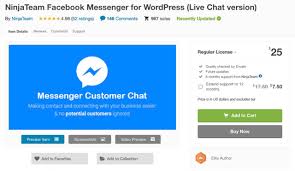


NinjaTeam Facebook Messenger for WordPress is a powerful plugin designed to integrate Facebook Messenger directly into your WordPress website, allowing you to interact with visitors and customers through Facebook's messaging platform. This plugin is ideal for businesses, online stores, service providers, and anyone looking to enhance customer service and engagement by leveraging the popularity and convenience of Facebook Messenger.
Key Features of NinjaTeam Facebook Messenger for WordPress:
- Easy Integration with Facebook Messenger:
- The plugin allows you to integrate Facebook Messenger directly into your WordPress website with minimal setup. Once installed, visitors can send messages directly to your business’s Facebook Messenger account, making it easier for you to connect with them in real-time.
- Customizable Chat Button:
- You can customize the Facebook Messenger chat button to match your website’s design. The button can be configured in terms of color, size, and position, allowing it to blend seamlessly with the overall look of your website.
- You can also choose where and when the Messenger button appears, such as on all pages or specific pages of your site.
- Real-Time Communication:
- With real-time messaging, you can respond to customer inquiries immediately through Facebook Messenger. This allows you to provide live support, answer questions, or guide users through their purchase journey, increasing the chances of conversion.
- Mobile-Friendly:
- The plugin is fully responsive, meaning the Facebook Messenger button will work smoothly across all devices, including desktops, tablets, and smartphones. Since Messenger is widely used on mobile devices, this ensures a seamless experience for visitors regardless of the device they are using.
- Offline Message Collection:
- If you are not available to reply to a visitor's message immediately, the plugin will collect the message and allow you to respond when you’re available. This helps ensure that no customer inquiries go unanswered.
- You can set up offline messages that automatically notify the user that you will respond as soon as possible.
- Automatic Greeting Message:
- The plugin allows you to set up an automatic greeting message that will appear when visitors click on the Messenger button. This can be a friendly welcome message, a prompt to ask questions, or any custom text you wish to use to engage visitors right away.
- The greeting message helps to initiate conversations and build rapport with potential customers.
- Chat Support for Multiple Pages:
- The plugin lets you display the Messenger button on different pages of your website, including your homepage, service pages, and product pages. This ensures that your customers can contact you no matter which part of your site they’re browsing.
- You can choose to show or hide the button on specific pages to tailor the user experience.
- Support for Multiple Languages:
- NinjaTeam Facebook Messenger supports multi-language websites. If your website is multilingual, you can configure the plugin to display Messenger in the appropriate language based on the user’s settings.
- Customizable Chat Window:
- The chat window itself is customizable. You can change the color scheme and appearance to match the branding of your website, ensuring consistency in your visual identity.
- Analytics Integration:
- The plugin integrates with Facebook’s analytics tools, allowing you to track conversations, response times, and engagement metrics. This data can help you improve your customer support and service offerings.
- Secure and Reliable:
- Since the plugin works with Facebook Messenger, it benefits from Facebook's security infrastructure. This ensures that all messages are encrypted, and user privacy is protected.
- No Need for Extra Accounts:
- Unlike other chat plugins that require the creation of new accounts, NinjaTeam Facebook Messenger leverages your existing Facebook business page. You don’t need to set up additional accounts or logins—everything works with your existing Messenger setup.
- Custom CSS:
- For advanced users, NinjaTeam Facebook Messenger for WordPress allows custom CSS, giving you full control over the styling of the Messenger button and chat window. This flexibility helps you achieve a perfect match with your website’s design.
- Quick Setup and Installation:
- The installation process is straightforward, and the plugin comes with an easy-to-follow setup guide. You can integrate the plugin into your WordPress site in just a few minutes.
- Simply install and activate the plugin, then connect it to your Facebook business page.
How to Install and Set Up NinjaTeam Facebook Messenger for WordPress:
- Install the Plugin:
- Download the NinjaTeam Facebook Messenger plugin from a marketplace like CodeCanyon or the plugin developer’s website.
- Go to your WordPress admin dashboard, navigate to Plugins > Add New, and click Upload Plugin. Upload the downloaded ZIP file and click Install Now.
- After the plugin is installed, click Activate to enable it.
- Connect to Facebook:
- Once activated, go to the plugin settings page. You will need to connect the plugin to your Facebook Business Page by logging in with your Facebook account.
- Follow the prompts to select your Facebook page and grant the necessary permissions for the plugin to work.
- Customize the Chat Button:
- In the settings, you can configure how the Facebook Messenger button will appear on your site. Customize the button’s position, size, color, and text to match your site’s theme.
- You can choose to show the button on all pages or specific pages as per your preferences.
- Set Up Automatic Greeting:
- Add an automatic greeting message to encourage visitors to start a conversation. You can write a welcome message, provide a prompt for users to ask questions, or set up a message that introduces your business or services.
- Configure Offline Messaging:
- Set up an offline message if you are not available to chat immediately. This ensures that your visitors will know when they can expect a reply, reducing the chance of losing leads or inquiries.
- Customize Chat Window Appearance:
- You can adjust the appearance of the chat window to align with your brand colors and design guidelines. Use the plugin’s options to match the look of the Messenger window with your website's visual identity.
- Test the Integration:
- After setting up, test the integration by visiting your website and clicking on the Facebook Messenger button. Ensure the chat window opens correctly, the greeting message displays, and you can send/receive messages.


![Booknetic - Appointment Booking & Appointment Scheduling & Calendar reservation [SaaS]](https://gplpixel.com/wp-content/uploads/2024/06/Booknetic-Appointment-Booking-Appointment-Scheduling-Calendar-reservation-SaaS-400x203.jpg)