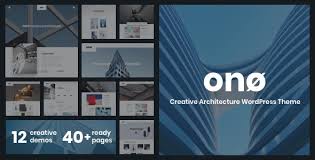


ONO – Architecture WordPress Theme is a sophisticated, modern, and highly customizable WordPress theme specifically designed for architects, architectural firms, interior designers, construction companies, and any other professionals in the design or building industry. With its sleek design, intuitive functionality, and powerful features, ONO is built to showcase your architectural projects and services in an elegant and professional manner.
Key Features of ONO – Architecture WordPress Theme:
1. Modern and Elegant Design:
- ONO comes with a clean, minimalist design that focuses on showcasing high-quality images of your architectural projects. Its sleek and stylish aesthetic makes it perfect for design-focused businesses.
- The theme is designed to provide a premium feel, with a layout that emphasizes visual content such as images, 3D models, and project portfolios.
2. Fully Responsive and Mobile-Ready:
- The theme is fully responsive, meaning it automatically adjusts to fit all screen sizes, ensuring your website looks great on desktops, tablets, and smartphones.
- A mobile-optimized design is crucial for providing an excellent user experience for potential clients who may visit your website on various devices.
3. Pre-designed Demo Content:
- ONO includes multiple pre-designed demo content for you to choose from, including homepage layouts, portfolio templates, service pages, and more.
- With the one-click demo import feature, you can quickly import demo content to get started, giving you a solid foundation for customization.
4. Drag-and-Drop Page Builder (Elementor):
- ONO is fully compatible with Elementor, one of the most popular drag-and-drop page builders for WordPress. This allows you to build custom layouts and design your website visually without needing to write any code.
- You can easily customize pages, sections, and elements by dragging and dropping widgets and content blocks into place.
5. Portfolio Showcase:
- The theme includes a portfolio section that is specifically designed to highlight your architectural work. You can display images, project descriptions, and more to showcase your completed projects.
- With customizable portfolio layouts, such as grid, masonry, or carousel, you can choose the best way to display your work visually.
6. Service Pages:
- ONO allows you to create dedicated service pages where you can highlight the specific architectural services you offer. Each service can include images, descriptions, and pricing information, helping potential clients understand what you provide.
- The theme also supports call-to-action buttons on service pages to encourage users to get in touch with you or request a quote.
7. About Us and Team Pages:
- The theme includes pages to introduce your team and showcase your company’s history, philosophy, and approach. This helps to build trust with potential clients and lets them learn more about your background and expertise.
- You can create a Team section to highlight key team members, their roles, and their qualifications.
8. SEO Optimized:
- ONO is built with SEO best practices in mind, making it easier for your website to rank on search engines like Google.
- The theme’s structure, clean code, and compatibility with SEO plugins (like Yoast SEO and Rank Math) will help improve your visibility and attract more organic traffic.
9. Blog Section:
- ONO includes a blog layout, allowing you to share articles, design tips, news, and insights about the architecture industry. A blog can help engage with your audience, establish your expertise, and improve your SEO rankings.
- The theme includes several blog layout options, such as grid, list, or single-post styles, which you can easily customize.
10. WooCommerce Compatibility:
- If you wish to sell architectural products or services directly from your website, ONO is compatible with WooCommerce.
- This integration allows you to set up an online store to sell architectural books, design plans, or other related products.
11. Multiple Header and Footer Styles:
- The theme provides multiple header and footer styles, giving you the flexibility to choose a layout that matches your branding.
- You can customize the header to include navigation menus, contact information, social media links, and more.
12. Google Fonts and Typography Options:
- ONO gives you access to Google Fonts, allowing you to select from a wide variety of fonts for your website’s text.
- You can adjust font sizes, line spacing, and letter spacing to create a visually appealing and readable layout.
13. Contact Forms and Google Maps:
- The theme comes with built-in contact forms, making it easy for clients to get in touch with you directly. You can customize the forms to collect information such as names, email addresses, and inquiries.
- Google Maps integration allows you to display your office location on the contact page, making it easier for clients to find your business.
14. Translation Ready:
- ONO is translation-ready, meaning you can easily translate your website into other languages using plugins like WPML or Polylang.
- This feature is beneficial for reaching an international audience or providing multilingual support for clients in different regions.
15. Regular Updates and Premium Support:
- With ONO, you’ll receive regular theme updates, ensuring compatibility with the latest WordPress versions and adding new features.
- You’ll also have access to premium support to help with any technical questions, installation issues, or customization requests.
How to Set Up and Use ONO – Architecture WordPress Theme:
1. Install the Theme:
- From your WordPress dashboard, go to Appearance > Themes > Add New, then upload the ONO theme ZIP file.
- Click Install Now and then Activate the theme.
2. Install Required Plugins:
- ONO requires certain plugins to work correctly, including Elementor (for drag-and-drop page building), WooCommerce (if you plan to sell products), and other optional plugins for functionality.
- You can install and activate these plugins from the WordPress Plugin Repository.
3. Import Demo Content:
- After activating the theme, you can import demo content using the one-click demo import feature. This sets up your website with pre-designed pages, layouts, and content that you can customize.
4. Customize Your Website:
- Use the WordPress Customizer to adjust global settings like colors, typography, header and footer styles, and more.
- With Elementor, you can visually design your website by dragging and dropping widgets and content blocks to create your ideal layout.
5. Add Portfolio and Service Pages:
- Add images, descriptions, and project details to your portfolio to showcase your architectural work.
- Create detailed service pages to highlight the architectural services you offer. You can add images, pricing, and more to each service.
6. Set Up Contact Forms and Google Maps:
- Configure the contact form to allow visitors to get in touch with you. Make sure you include all relevant fields such as name, email, and message.
- Integrate Google Maps on the contact page to display your office location.
7. Start a Blog:
- Use the blog section to publish articles related to architecture, design tips, and industry news. This will help build your reputation as an expert and improve your website's SEO.
8. Optimize for SEO:
- Install an SEO plugin like Yoast SEO or Rank Math to further optimize your website. Use keywords, metadata, and descriptions to improve search engine rankings.
9. Launch Your Website:
- Once your site is ready, publish it and start sharing it with clients, potential customers, and on social media platforms to increase visibility.