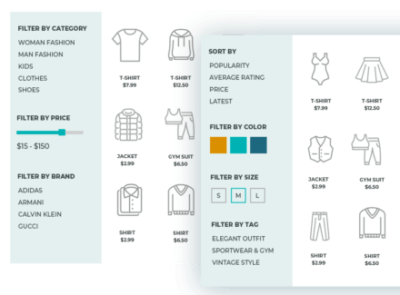


SearchWP DirectoryPress Integration refers to the compatibility and enhanced search functionality between the SearchWP plugin and DirectoryPress, a popular WordPress plugin used for creating directory-style websites. This integration allows you to leverage SearchWP's advanced search capabilities to enhance the search experience on directory-based sites created with DirectoryPress.
What is DirectoryPress?
DirectoryPress is a powerful WordPress plugin designed to help you create and manage directory websites. It allows you to list businesses, services, individuals, or any other type of directory content in an organized manner. The plugin comes with a variety of features for customization, including fields for business details, categories, tags, custom fields, and more. However, the default search functionality in DirectoryPress may not always provide the most relevant or comprehensive results, especially for large directories with lots of content. SearchWP addresses this by improving the search functionality with advanced features like better indexing, custom content types, and more precise search result rankings.Benefits of Integrating SearchWP with DirectoryPress
- Advanced Indexing of Directory Content:
- SearchWP allows you to index all of the content within DirectoryPress including custom fields, taxonomies, and metadata. For example, if you have business listings with custom fields for business name, location, phone number, or services, SearchWP can index these fields and include them in the search results. This ensures that users can find more relevant results based on the fields they care about.
- SearchWP can index not only post content but also all custom fields and taxonomies related to listings in DirectoryPress, enabling much more refined and accurate search results.
- Improved Relevance of Search Results:
- SearchWP uses relevance scoring to rank search results. This means that DirectoryPress listings that match the search query can be prioritized according to relevance. For instance, if a user searches for "restaurants in New York," SearchWP can ensure that listings with "New York" in the address or business description are ranked higher, improving the overall user experience.
- You can adjust weighting for different content sources, so SearchWP can prioritize certain fields over others (e.g., title, business name, location, description, etc.).
- Enhanced Search for Custom Fields:
- DirectoryPress allows users to create custom fields for their listings. For example, you might have fields for business hours, services offered, or product categories. By integrating SearchWP, you ensure that these custom fields are indexed and searchable, allowing users to find listings based on specific attributes (e.g., "24-hour service" or "car repair").
- SearchWP can be configured to index custom fields that DirectoryPress uses, so users can search not only by title or description but also by custom data points.
- Fuzzy Matching:
- SearchWP also supports fuzzy matching, which is helpful for users who might misspell search terms or search for partial words. This can be especially useful in a directory setting where users may search for a listing by a business name or service type but might not have the exact spelling.
- For example, if a user types "resturant" instead of "restaurant," SearchWP will still return the relevant listings.
- Exact Match and Phrase Search:
- SearchWP offers the ability to search for exact matches or phrases within content, which can be useful for DirectoryPress sites where users might be searching for a very specific name or service. For example, searching for "Joe's Pizza" will ensure that only listings with that exact name appear in the search results.
- Customizable Search Filters:
- SearchWP allows you to create custom search filters, and when integrated with DirectoryPress, these filters can help users refine their search results. For example, you could allow users to filter by business category, location, or any other custom field created in DirectoryPress. This makes the search experience more intuitive and accurate.
- The combination of SearchWP and DirectoryPress can make your site’s directory search function much more sophisticated, with advanced filters that improve the accuracy of results.
- SearchWP Query Modifications:
- Through SearchWP’s advanced filtering options, you can modify how DirectoryPress listings are handled in the search queries. You can add custom parameters or modify the ranking of results based on specific business categories, locations, or other custom attributes defined within DirectoryPress.
- Search Analytics:
- SearchWP offers analytics that show what users are searching for on your site. By integrating this with DirectoryPress, you can gain valuable insights into the types of businesses, services, or listings that users are most interested in. This can help you optimize your directory site and improve the user experience over time.
- Better SEO for Directory Listings:
- Since SearchWP indexes all content and custom fields more efficiently, it can improve the visibility of your directory content in search engines as well. The better you can structure your content and ensure it is properly indexed and searchable, the higher the chances that search engines will crawl and index your content effectively, helping with SEO.
- Mobile and User Experience:
- By using SearchWP in conjunction with DirectoryPress, the search results will be more relevant and fast, providing users with a better experience. This is important for directory websites as visitors are typically looking for quick results when browsing a list of businesses or services.
- Since SearchWP improves the speed and relevance of searches, it helps reduce bounce rates and ensures a better user experience across all devices, including mobile.
How to Set Up SearchWP and DirectoryPress Integration
- Install and Activate SearchWP:
- First, you need to install and activate the SearchWP plugin on your WordPress site. You can do this via the WordPress plugin repository (for the free version) or by uploading the premium version.
- Install and Configure DirectoryPress:
- Next, ensure that DirectoryPress is installed and properly configured on your site. Set up the directory with the necessary custom fields, taxonomies, and post types that you want users to be able to search through.
- Enable DirectoryPress Data Indexing in SearchWP:
- After installing SearchWP, go to its settings page. Under the Sources tab, you should be able to configure SearchWP to index all the necessary content from DirectoryPress, such as business listings, categories, custom fields (e.g., location, contact details), and other related metadata.
- Make sure to enable indexing of custom fields and taxonomies used by DirectoryPress to ensure all relevant information is included in the search results.
- Adjust Weighting and Relevance:
- In SearchWP, you can adjust the weighting for different content sources. For DirectoryPress, you can prioritize fields like the business name, address, category, or description to ensure they are given more weight in the search ranking.
- You can fine-tune how SearchWP handles search relevance, allowing certain fields (like business names or locations) to be more important than others.
- Configure Search Filters:
- If you want to allow users to filter search results by specific fields (e.g., category, location, business hours), configure SearchWP's filter options. You can create custom search forms or use built-in WordPress filters to allow users to narrow down their search results.
- Test the Search Functionality:
- Once the integration is complete, test the search functionality to ensure that SearchWP is indexing the correct content from DirectoryPress. Try searching for specific business names, locations, or categories and confirm that the search results are accurate and relevant.
- Review Search Analytics:
- After users start searching on your site, you can review SearchWP’s search analytics to see what terms are being searched the most and adjust your directory setup based on this data.

![Booknetic - Appointment Booking & Appointment Scheduling & Calendar reservation [SaaS]](https://gplpixel.com/wp-content/uploads/2024/06/Booknetic-Appointment-Booking-Appointment-Scheduling-Calendar-reservation-SaaS-400x203.jpg)