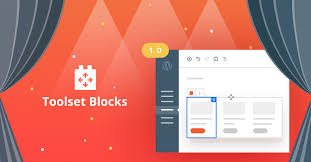
Toolset Blocks is a plugin for WordPress that allows users to create custom front-end content displays on their websites. This plugin is part of the Toolset suite of products, designed to help users create custom post types, fields, taxonomies, and more, without writing code. With Toolset Blocks, users can build dynamic and custom content layouts using a simple drag-and-drop interface.
Key Features of Toolset Blocks – Front-end Content Display:
- Custom Content Display:
- Toolset Blocks lets you display your custom content (such as posts, pages, or custom post types) on the front end of your website using a block-based layout editor.
- The plugin uses the Gutenberg editor, allowing users to build custom content layouts and display elements like images, text, links, and more.
- Dynamic Content:
- One of the standout features of Toolset Blocks is its ability to display dynamic content based on custom fields, post types, taxonomies, and relationships.
- You can pull dynamic data into your front-end design, such as showing a list of custom posts or content from a specific taxonomy (e.g., displaying products by category).
- Drag-and-Drop Layout Builder:
- The front-end display is easy to set up thanks to Toolset Blocks’ drag-and-drop interface. You can use various blocks (e.g., Image, Text, Buttons, Lists, and Grids) and place them into custom layouts.
- No coding knowledge is required; everything is handled via the Gutenberg block editor.
- Custom Views:
- You can use Toolset Blocks to create custom views (such as a list of posts or products) and display them anywhere on your site.
- These views can filter content, sort them based on specific criteria, and paginate results.
- Query Filters:
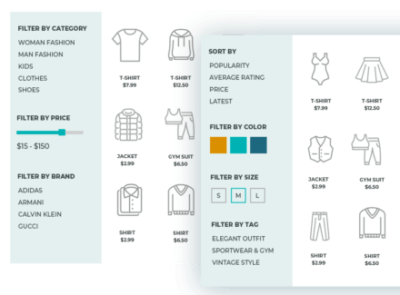
- Toolset Blocks allows users to add filters to the front-end displays. These filters can include options like category filters, search bars, date filters, and more. These filters can be applied to custom post types, taxonomies, and fields.
- Frontend Forms:
- With Toolset Blocks, you can create custom front-end forms that allow users to add or edit content directly from the front end, without needing to access the WordPress admin area.
- This is especially useful for membership sites, directories, or user-generated content sites.
- Customizable Templates:
- You can create customizable templates for various content types and use these templates for dynamic content display.
- For example, if you are creating a custom post type for products, you can design a specific template for product pages that automatically pulls in data like price, image, and description.
- Responsive Design:
- Toolset Blocks ensures that the content you display is responsive and works well on all screen sizes, from desktop to mobile devices.
- You can preview and customize the layout for different devices, ensuring that the content looks great across all platforms.
- Works with Other Toolset Plugins:
- Toolset Blocks works seamlessly with other Toolset plugins, like Toolset Types (for creating custom post types and fields), Toolset Views (for displaying dynamic content), and Toolset Maps (for adding maps and geolocation to your site).
- These integrations make it even more powerful and versatile for building complex websites with custom content structures.
- Access Control:
- You can restrict access to certain parts of your content based on user roles. For example, you might display premium content only for logged-in users or members.
- This is useful for creating membership sites or gated content areas.
How to Use Toolset Blocks for Front-End Content Display:
- Install the Toolset Blocks Plugin:
- First, you need to install the Toolset Blocks plugin on your WordPress site.
- Go to Plugins > Add New in your WordPress dashboard, search for Toolset Blocks, and install it. Once installed, activate the plugin.
- Create Custom Post Types (if needed):
- If you haven’t already, you can create custom post types, fields, or taxonomies using Toolset Types or any other custom post type plugin.
- Once the custom post types and fields are set up, you can use Toolset Blocks to display them.
- Design Front-End Display with Gutenberg:
- Create a new post or page where you want to display the custom content.
- Open the page editor using the Gutenberg editor.
- Click the Toolset Blocks icon in the block menu to add Toolset blocks to your page. These blocks allow you to pull dynamic content from your custom fields, post types, or taxonomies.
- Add a Query Loop Block:
- To display a list of custom posts, you can use the Query Loop Block. This block will display posts based on your specified criteria, such as post type, category, or tags.
- You can customize how the posts appear by selecting different templates or layouts.
- Customize with Filters:
- If you want to allow users to filter the content (e.g., filter posts by category), you can add filter blocks like search or category filters.
- These filters will dynamically update the content displayed on the page.
- Add Front-End Forms:
- You can create forms for users to submit content. For example, if you’re running a directory site, you might allow users to add new listings.
- Use the Toolset Forms functionality to create and embed forms on the front end, allowing users to add or edit posts directly.
- Preview and Publish:
- After customizing the layout and content, preview how it looks on the front-end.
- Once satisfied with your design, publish the page, and the front-end content display will be live.
Benefits of Toolset Blocks for Front-End Content Display:
- No Coding Required: Users can create complex custom layouts and dynamic content displays without needing to write any code.
- Flexibility: Toolset Blocks gives you the flexibility to create custom content templates, add filters, and design front-end forms, all without relying on third-party themes or additional plugins.
- Customizable: Tailor the content and design of your pages to fit your exact needs, from business directories to portfolio sites or membership areas.
- Powerful Integration: Works well with the entire Toolset suite, providing a powerful ecosystem for building custom WordPress sites.
Use Cases for Toolset Blocks – Front-End Content Display:
- Business Directories:
- You can create a directory of businesses, products, or services with custom post types and display them in a front-end grid or list layout using Toolset Blocks.
- Portfolio Sites:
- Designers and creatives can use Toolset Blocks to display their portfolio in a dynamic and organized way. Each portfolio item can pull in custom data such as project images, descriptions, and skills used.
- Custom Listings:
- If you’re running a real estate site, job board, or any other type of listing site, Toolset Blocks allows you to build a custom front-end display for these listings, with filters and sorting options.
- Membership Sites:
- You can build custom layouts for members-only content or gated content, with forms for users to submit their information and content directly from the front-end.

![Booknetic - Appointment Booking & Appointment Scheduling & Calendar reservation [SaaS]](https://gplpixel.com/wp-content/uploads/2024/06/Booknetic-Appointment-Booking-Appointment-Scheduling-Calendar-reservation-SaaS-400x203.jpg)