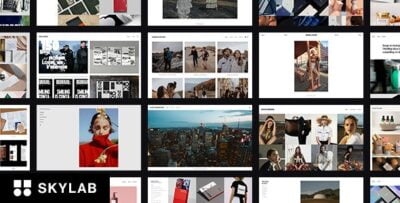
WhiteLight – Premium WordPress Theme by WooThemes is a versatile and elegant theme designed to provide a clean, minimalist design that is perfect for personal blogs, portfolio websites, and small business sites. The theme is lightweight, well-structured, and offers a wide range of customization options, making it a great choice for anyone looking to create a stylish online presence with minimal effort.
Here’s an overview of the WhiteLight Premium Theme by WooThemes:
Key Features of WhiteLight – Premium WordPress Theme:
- Elegant and Minimalist Design:
- WhiteLight features a minimalist design that focuses on delivering a clean, sleek look. The theme’s white and neutral tones create a sophisticated aesthetic, making it ideal for showcasing content, whether you’re sharing blog posts, portfolio work, or company information.
- The theme's simplicity highlights your content, providing a pleasant and distraction-free reading experience.
- Fully Responsive:
- WhiteLight is designed to be fully responsive, meaning it automatically adjusts to look great on any device, whether it’s a desktop, tablet, or smartphone.
- This mobile-friendly design ensures that your site looks and functions seamlessly across all screen sizes.
- Customizable Layouts:
- The theme offers multiple layout options, giving you flexibility in how you present your content. You can choose from grid or list layouts for your homepage, blog, or portfolio sections.
- You can also control the number of columns in your layout, allowing you to create a personalized design that suits your content style.
- Custom Widgets:
- WhiteLight comes with a set of useful custom widgets to help you easily add interactive and dynamic content to your site. Some of the widgets include:
- Recent Posts Widget
- Popular Posts Widget
- Social Media Links Widget
- Flickr Feed Widget
- Twitter Feed Widget
- These widgets add functionality to your site, making it easier for users to explore your content and connect with you on social media.
- WhiteLight comes with a set of useful custom widgets to help you easily add interactive and dynamic content to your site. Some of the widgets include:
- Customizable Header and Logo:
- The theme allows you to customize your header with your own logo or text. You can upload a custom logo to give your site a branded look or use the default theme header with your site title.
- You can also change the header background color or image to make it more unique to your site.
- Typography and Color Options:
- WhiteLight offers multiple typography and color options to help you customize the text appearance on your site.
- You can adjust font styles, sizes, and colors for headings, body text, and links, allowing you to match the theme to your branding and design preferences.
- SEO Optimized:
- WhiteLight is built with SEO (Search Engine Optimization) in mind. The theme’s clean code and proper HTML markup ensure that search engines can easily crawl and index your content.
- This helps improve your website's chances of ranking higher in search engine results, driving more organic traffic to your site.
- Built-in Social Media Integration:
- WhiteLight integrates social media buttons, allowing your visitors to easily share your posts on platforms like Facebook, Twitter, Instagram, and Pinterest.
- The theme supports social media integration to help you grow your online presence and drive traffic to your site.
- Blog and Portfolio Features:
- The theme is particularly well-suited for blogs and portfolios. It offers a clean and easy-to-navigate blog layout with a focus on content.
- The portfolio feature allows you to showcase your work in a professional and visually appealing way, ideal for creatives or businesses looking to display projects, photography, or design work.
- Customizable Footer:
- The footer area in WhiteLight is fully customizable, letting you add custom text, widgets, or even a contact form. You can use the footer to provide additional information about your site, display social media links, or add links to your most popular pages.
- Translation Ready:
- WhiteLight is translation-ready, meaning it can easily be translated into any language. This feature is ideal for websites with a global audience or for those looking to create a multilingual site.
- You can use translation plugins like WPML to manage translations and make your content accessible to international visitors.
- Fast Loading Speed:
- WhiteLight is built to ensure fast page load times, which is critical for both user experience and SEO.
- A faster website encourages users to stay longer and explore more content, while also improving search engine rankings.
- WooCommerce Integration:
- Although primarily designed for blogs, portfolios, and business sites, WhiteLight is also WooCommerce compatible, making it easy to turn your site into an online store.
- You can sell products, services, or digital items directly from your site, with the full power of the WooCommerce plugin to manage payments, products, and orders.
- Regular Updates and Support:
- WooThemes offers regular updates for WhiteLight, ensuring compatibility with the latest version of WordPress and any new features or improvements.
- WooThemes provides reliable customer support to help with any issues you might encounter during setup or customization.
How to Set Up the WhiteLight – Premium Theme by WooThemes:
Step 1: Install and Activate the Theme
- Download the WhiteLight theme from WooThemes or another trusted source.
- In your WordPress dashboard, go to Appearance > Themes > Add New and click Upload Theme.
- Upload the ZIP file and click Install Now.
- After the theme is installed, click Activate to apply it to your site.
Step 2: Import Demo Content (Optional)
- WhiteLight comes with demo content that you can import to help you quickly get started.
- To import the demo content, you may need to install a demo importer plugin (often provided by WooThemes or the theme itself) to automatically import pages, posts, and settings.
Step 3: Customize the Theme
- Once the theme is activated, go to Appearance > Customize to access the WordPress Customizer.
- Customize your site’s appearance by changing the site title, logo, colors, fonts, and layout settings.
- You can adjust settings for the header, footer, and widgets, as well as add your logo and favicon.
Step 4: Set Up the Blog or Portfolio Layout
- Go to Appearance > Customize to choose a blog or portfolio layout that best suits your needs.
- You can adjust the number of columns, display options, and featured images for blog posts or portfolio items.
Step 5: Add Widgets to the Sidebar or Footer
- Go to Appearance > Widgets to add custom widgets to your sidebar or footer areas.
- Use widgets like Recent Posts, Social Media Links, and Flickr Feed to make your site more interactive.
Step 6: Set Up Social Media Integration
- Add your social media links in the appropriate section in the WordPress Customizer or theme settings.
- Enable social sharing buttons so visitors can easily share your content on their social networks.
Step 7: Set Up WooCommerce (If Applicable)
- If you plan to use WooCommerce to sell products, install and configure the WooCommerce plugin.
- Set up product pages, payment gateways, shipping options, and other e-commerce settings.
Step 8: Publish Content
- Start adding blog posts, portfolio items, or other types of content through Posts > Add New or Portfolio > Add New.
- Organize content with categories, tags, and featured images to improve navigation and readability.
Step 9: Test Your Website
- Check how your website looks on different devices, ensuring that the responsive design works as intended.
- Test all links, social media buttons, and forms to make sure they function properly.
Step 10: Launch and Promote
- Once your site is set up and customized, promote it through social media, email newsletters, and SEO strategies.
- Start engaging with your audience and building your site’s presence online.